Mermaid Live Editor Online
Type Mermaid code in a mermaid block and watch the diagram redraw as you edit. Flowcharts, sequence diagrams, class diagrams, state machines, ER diagrams, Gantt charts and more — written inside a Markdown document, so the text around your diagrams renders too. Free, no sign-up, nothing uploaded.
Free · no sign-up · runs in your browser, nothing is uploaded
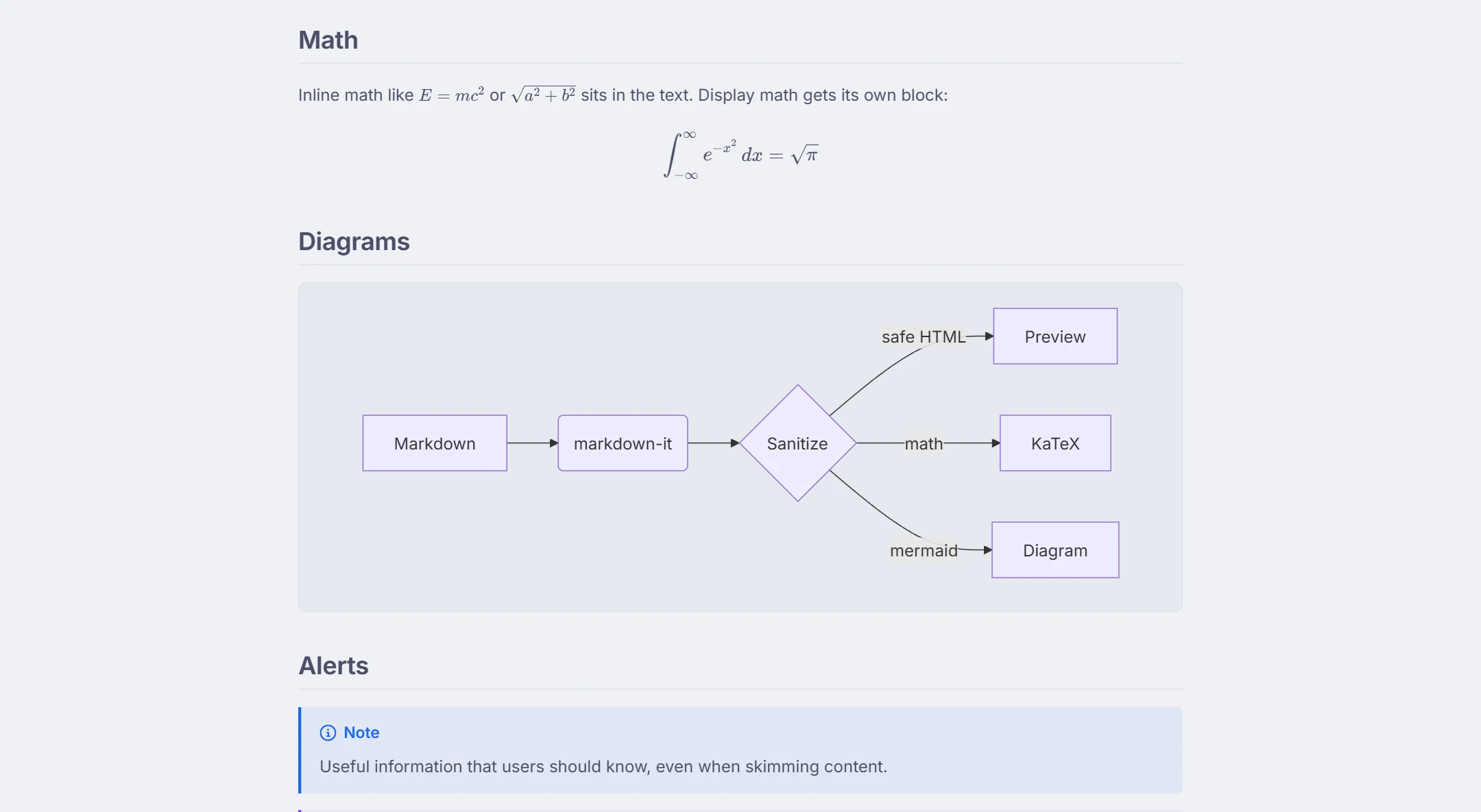
A Mermaid editor built into a Markdown editor
Mermaid turns a few lines of text into a diagram, which makes diagrams easy to diff, review and keep next to the documentation they explain. This page's editor is a split Markdown editor with Mermaid support built in: write the diagram where it belongs in the document, and the preview redraws it a moment after you stop typing. Diagrams you have not changed come back from a cache, so editing the prose around them stays fast; the engine itself loads the first time a document contains a diagram, which can take a moment.
Start with this block in the editor:
```mermaid
flowchart LR
  Idea --> Draft --> Review
  Review -->|changes| Draft
  Review -->|approved| Publish
```
and the flowchart appears on the right. Change LR (left to right) to TD (top down), add a node, or rename an edge, and the picture follows.
Diagram types you can draw
Every diagram below renders in the preview. Put the diagram keyword on the first line inside the fence:
- Flowchart (
flowchart TD) — processes, decisions, architecture sketches. - Sequence diagram (
sequenceDiagram) — calls between services or people over time. - Class diagram (
classDiagram) and state diagram (stateDiagram-v2). - Entity-relationship diagram (
erDiagram) — database schemas. - Gantt chart (
gantt), timeline (timeline) and user journey (journey). - Pie chart (
pie), quadrant chart (quadrantChart) and mindmap (mindmap). - Git graph (
gitGraph), requirement diagram (requirementDiagram) and C4 (C4Context). - Newer types such as Sankey (
sankey-beta), XY chart (xychart-beta), block (block-beta), packet, kanban and architecture (architecture-beta).
Syntax for beta diagram types can change between Mermaid releases, so check the official Mermaid documentation for the exact keywords; this editor runs the version bundled with the site.
Debugging a diagram
When Mermaid cannot parse the code, the diagram block turns into an error box with the parser's message — the line number, the text it choked on and what it expected. Fix the line and the diagram replaces the error. Use the Split layout so you can see both at once; the preview scrolls with the line you are editing. Diagrams are rendered in Mermaid's strict security mode, so click callbacks and scripts inside diagram definitions are disabled, and inline HTML elsewhere in the document is sanitized.
Saving, sharing and exporting
The document autosaves in your browser. Export → Download .md gives you the Markdown file to commit next to your code. Share creates a link that contains the whole document, so a colleague opens it with the diagram already drawn. Download .html exports a standalone page with the diagrams as SVG, and Print / Save as PDF produces a PDF in which the diagrams stay sharp at any zoom. Diagram colours follow the light or dark theme you choose.
When to use this and when to use a dedicated tool
If you only want to iterate on one diagram with a configuration panel and image downloads, a dedicated tool such as mermaid.live is built for that. If the diagram belongs in a document — a README, a design note, an agent's plan, project documentation — a Markdown editor that renders Mermaid is the shorter path, because you see the diagram in context and can download the whole file. New to the syntax around it? See the Markdown cheat sheet, or open the Markdown editor directly.
See it in action
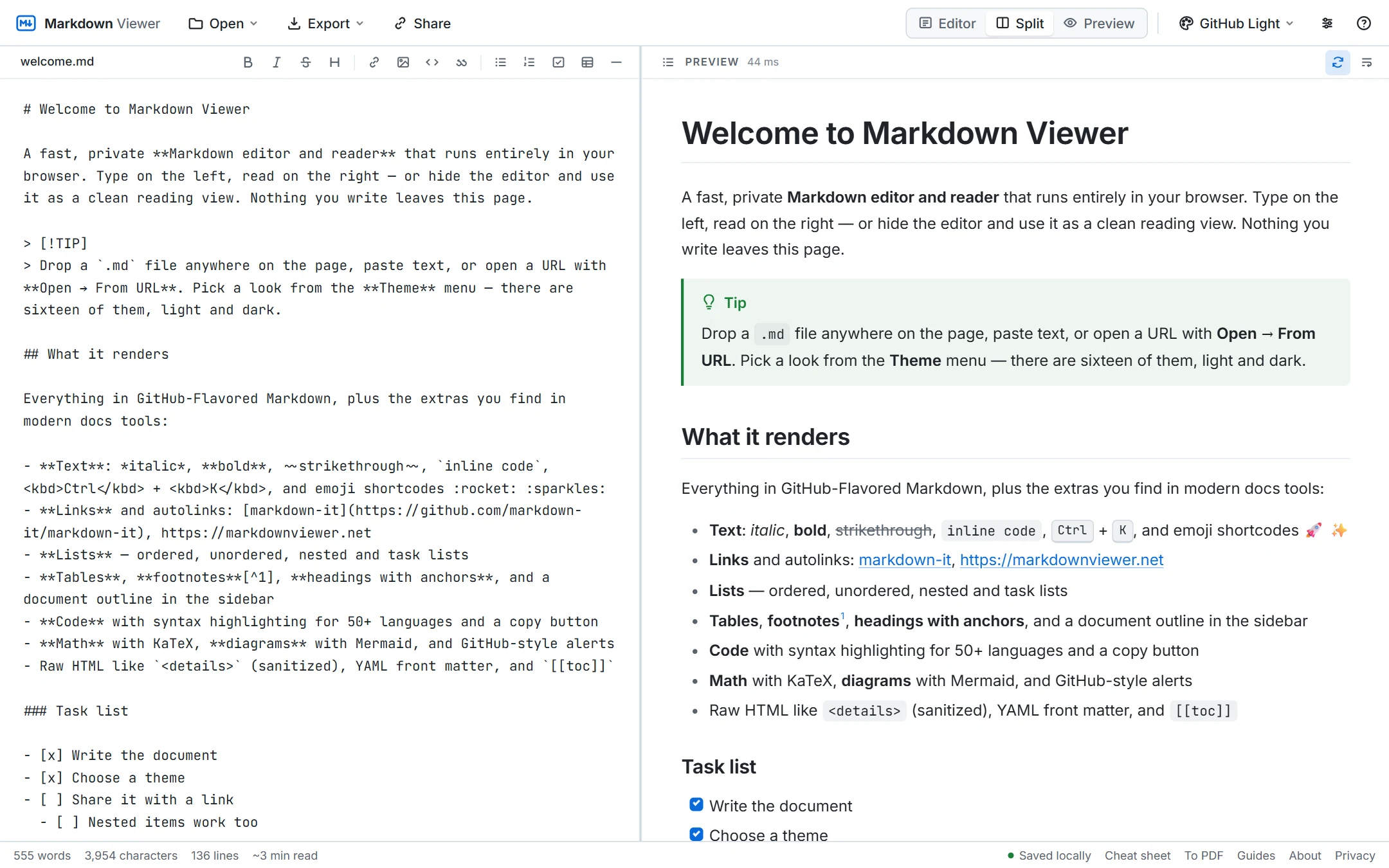
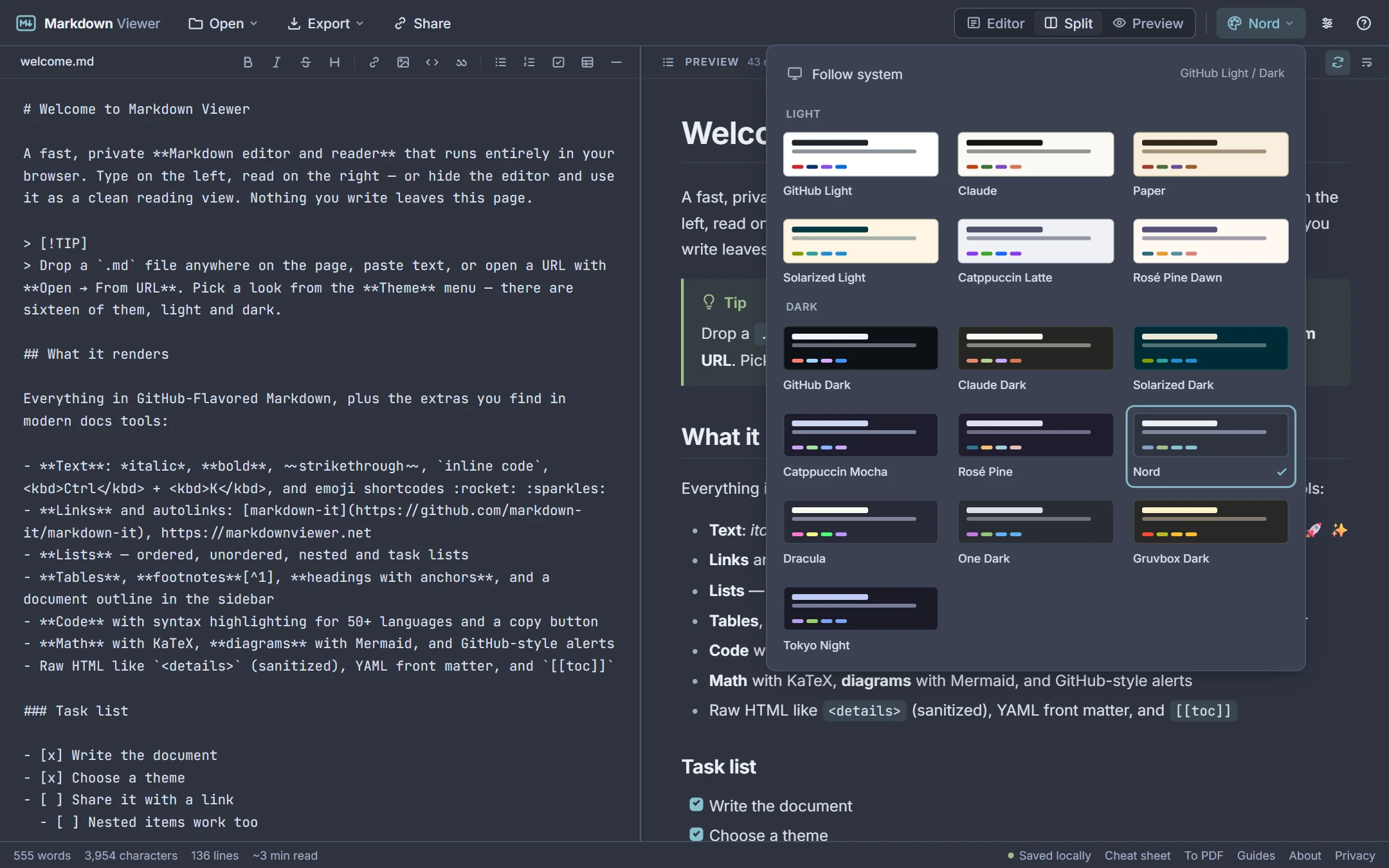
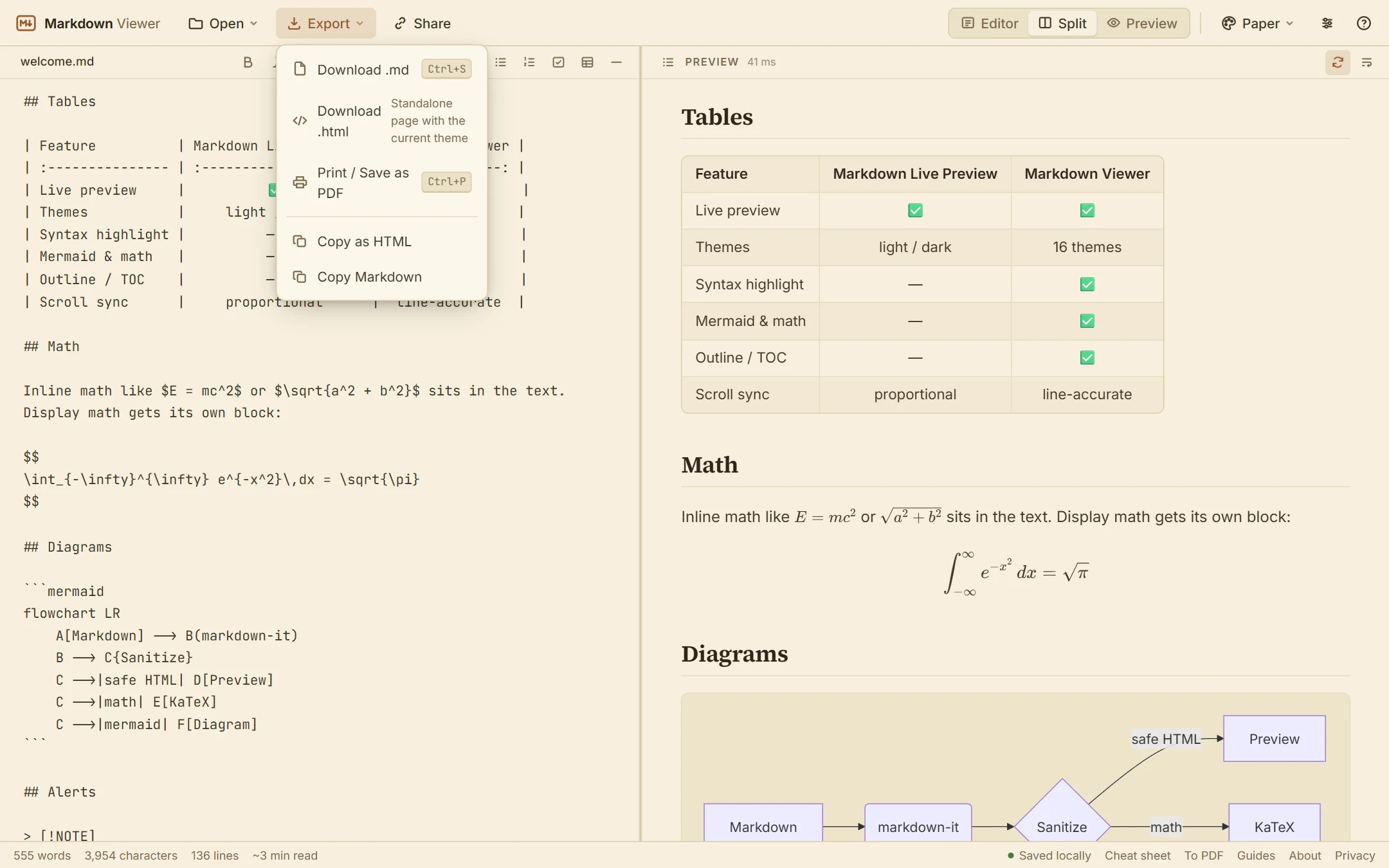
How it works
- 1Open the editor and type a fenced block that starts with
```mermaid, then your diagram code, then```. - 2The diagram appears in the preview and redraws as you type; a syntax error shows Mermaid's message instead.
- 3Keep it as a
.mdfile, share the link, export a standalone HTML page, or print to PDF.
What you get
Live preview in split view
Source on the left, rendered diagrams on the right, redrawn shortly after you stop typing.
Mermaid v11, 20 diagram types
Flowchart, sequence, class, state, ER, Gantt, pie, journey, Git graph, mindmap, timeline and more.
Errors you can read
If the code does not parse, the preview shows the parser's message so you can find the line.
Diagrams and prose together
Headings, tables, code and math around the diagrams — the format GitHub READMEs use.
Light and dark
Diagram colours follow the active theme; pick from 16 themes.
Private
Mermaid runs in your browser. Your diagram code is never uploaded.
Frequently asked questions
How do I write a Mermaid diagram here?
Which Mermaid diagram types work?
Can I export the diagram as SVG or PNG?
Is this the same as mermaid.live?
Why does my diagram show an error?
Does it work with GitHub README diagrams?
Do my diagrams leave my device?
Related tools
Ready when you are
Paste Markdown, drop a file, or open a URL — the preview appears instantly and everything stays on your device.
Open Markdown Viewer