CLAUDE.md Viewer and Editor
AI coding tools run on Markdown: CLAUDE.md, AGENTS.md, SKILL.md, plan and README files. Open any of them here to read them properly — tables, code blocks, Mermaid diagrams and alerts rendered — and edit them with a live preview. Free, in your browser, nothing uploaded.
Free · no sign-up · runs in your browser, nothing is uploaded

Why AI instruction files deserve a real viewer
Coding assistants are steered by Markdown. A CLAUDE.md tells Claude Code how your project builds and what to avoid; an AGENTS.md does the same job for other coding agents; a SKILL.md packages a reusable skill; GEMINI.md, plan documents and design notes follow the same pattern. They are written as text, but they are full of structure: nested lists of rules, command tables, fenced shell snippets, warnings, links to other files. Read as raw text they are tiring, and a stray asterisk or an unclosed code fence can quietly change how a document is understood.
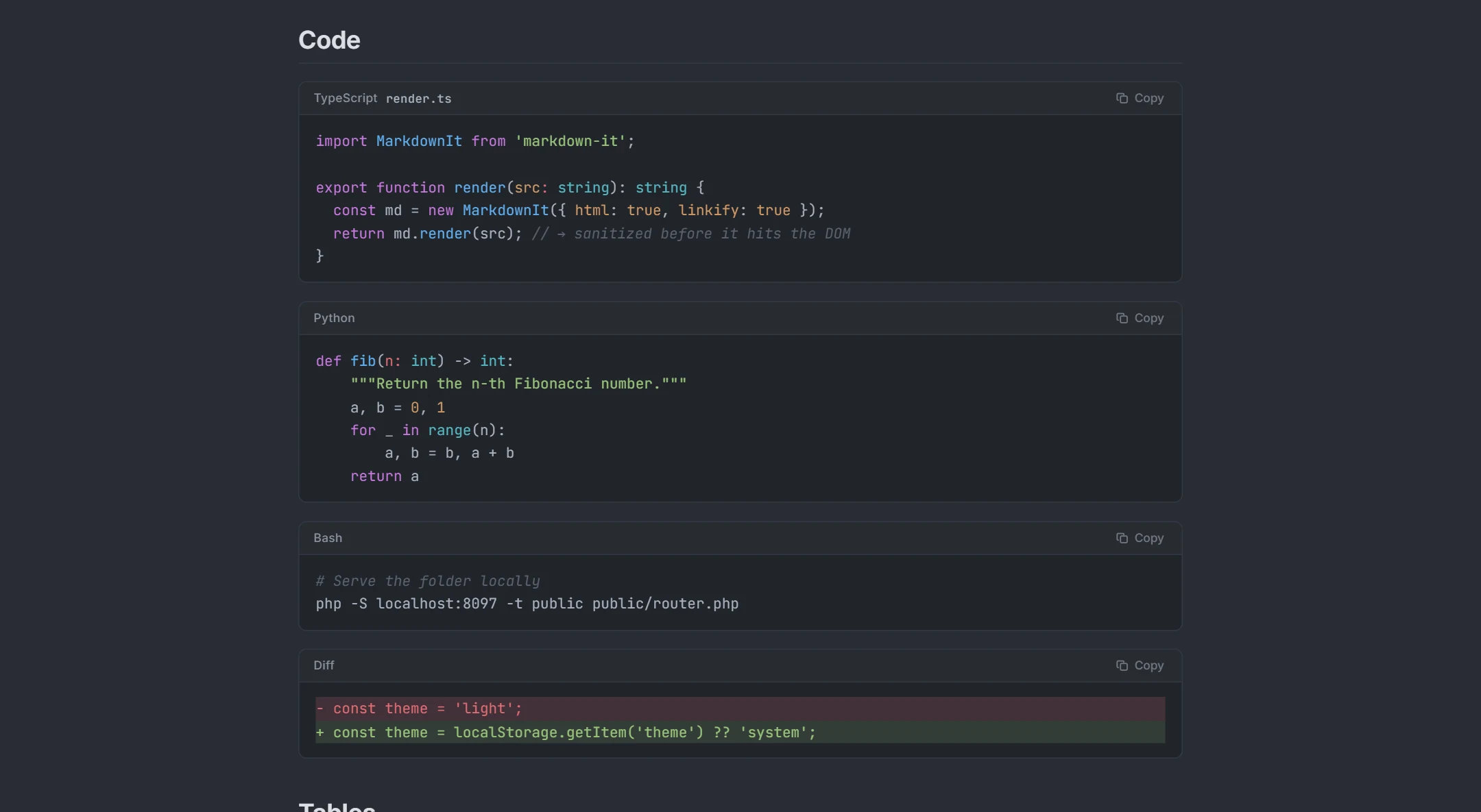
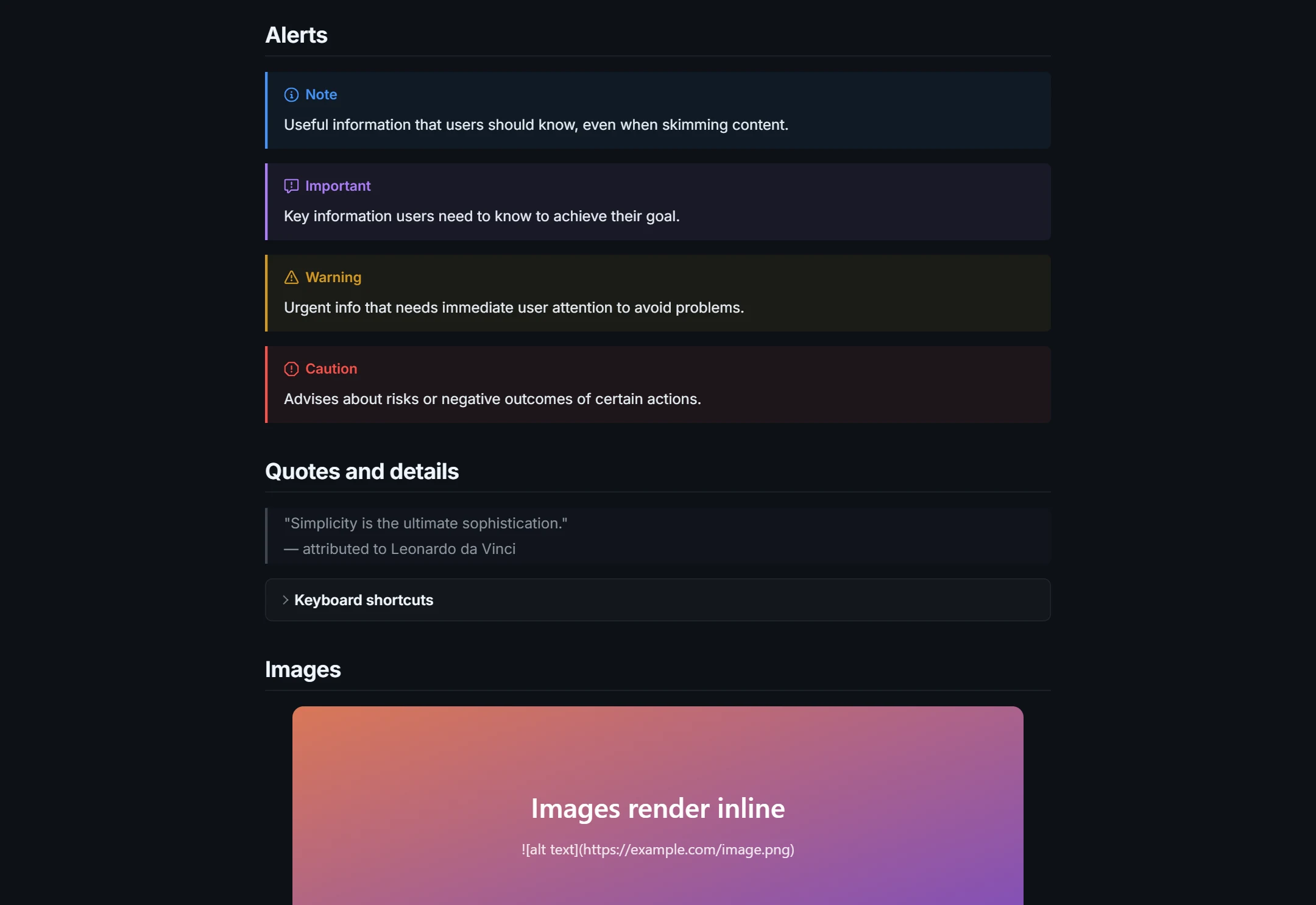
Open one here and you see what the author meant: headings you can navigate from the outline, rule lists with proper indentation, tables with aligned columns, commands in code blocks you can copy with one click, and > [!WARNING] callouts that stand out. It is a quick way to review an instruction file before you commit it, or to read a long plan an agent wrote for you before you approve it.
Open and read AGENTS.md, SKILL.md and plan files
- From your disk: use Open → Open file… or drag the file onto the page. Project instruction files usually sit at the repository root; skills live in folders you can browse to with the file dialog (show hidden folders if the path starts with a dot).
- From a repository: paste the GitHub link to the file into Open → From URL…. Anything public with a Markdown file behind it works, up to 2 MB.
- From a terminal or chat: copy the agent's answer and paste it into the editor. Tables, code and diagrams render instantly, and you can export the result as HTML or PDF.
For a SKILL.md, the YAML front matter between the two --- lines is displayed as a separate block above the body, so the name and description are easy to check. The viewer does not validate a skill — it shows you the text, rendered.
Diagrams, tables and callouts, rendered
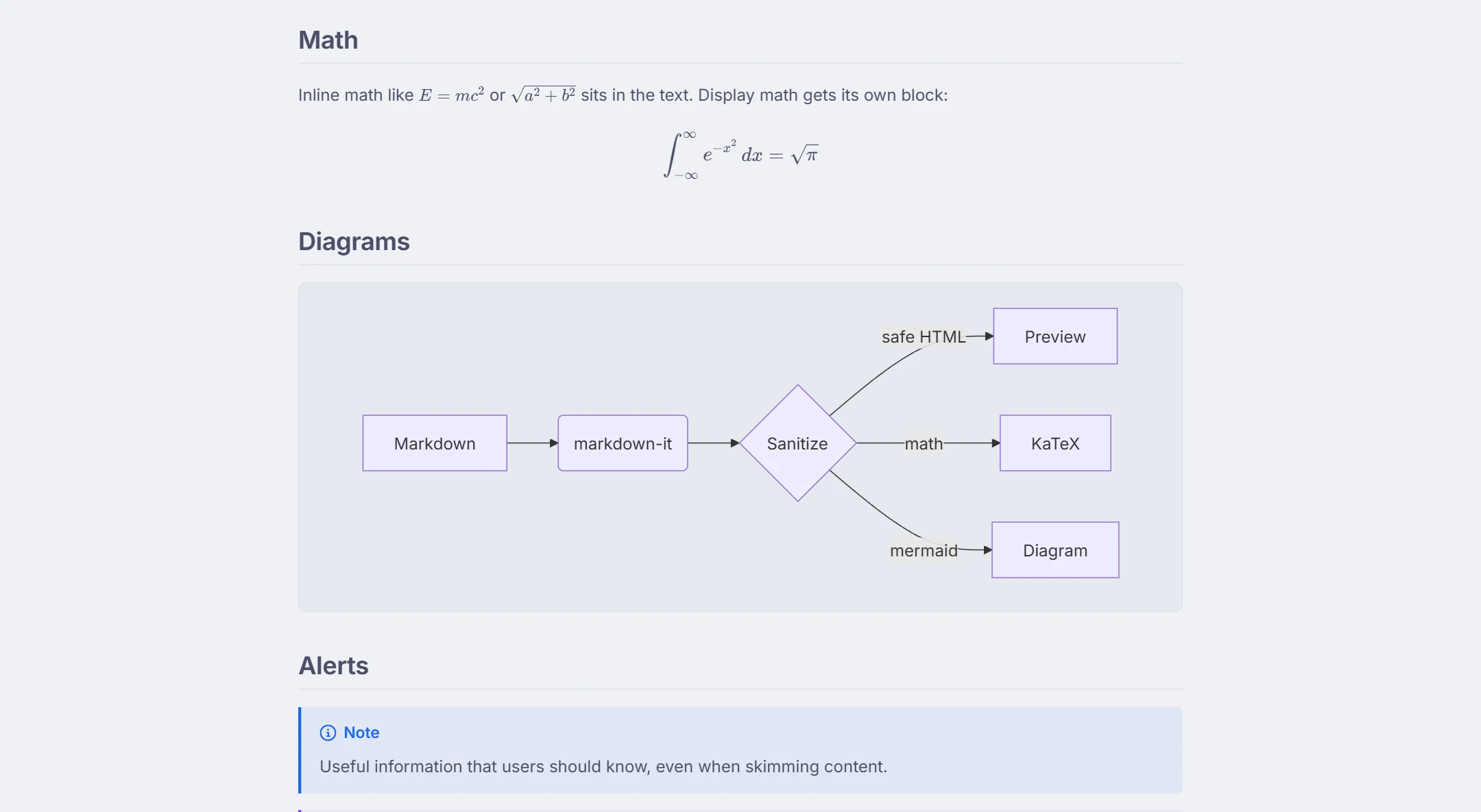
Agents like to explain architecture with Mermaid diagrams: a fenced mermaid block becomes a flowchart, sequence diagram, class diagram, state machine or Gantt chart right in the preview (the Mermaid live editor page lists the diagram types). Tables of options or endpoints render as real tables, task lists show checkboxes, math between dollar signs is typeset with KaTeX, and code blocks are highlighted for 50+ languages with the language named in the header. Inline HTML is sanitized before it reaches the page, so a document you did not write cannot run scripts here.
Edit with live preview, then save it back
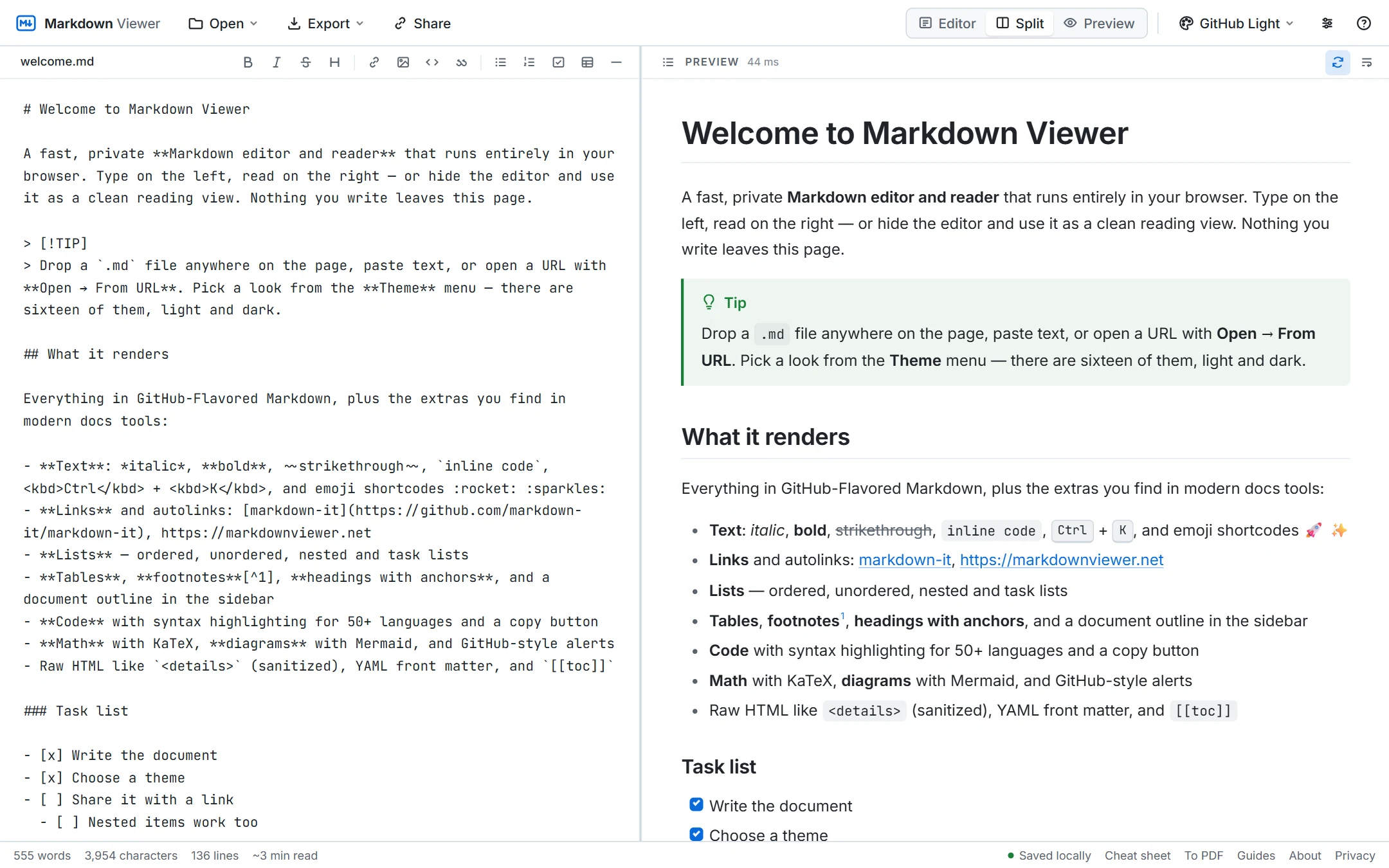
Switch to the Split layout to tidy an instruction file with the rendered result next to the source. The editor has a formatting toolbar, shortcuts, automatic list continuation and Tab indentation, and the preview scrolls in step with the line you are editing — useful for long files where a single mis-indented bullet changes the meaning. When you are done, Export → Download .md gives you the file to drop back into your project folder, and Copy Markdown puts the text on your clipboard. Sixteen light and dark themes, including a Claude theme with serif headings, let you choose a reading style that suits long documents.
New to the syntax? The Markdown cheat sheet covers it on one page, and the MD file guide explains how to open any .md file on Windows, Mac or phone.
Your project instructions stay private
Instruction and plan files often name internal tools, paths and conventions. Markdown Viewer renders everything with JavaScript in your browser and stores the document in local storage on your device; there is no account and no server-side copy. Opening a link is the only action that involves our server, and that fetch is not stored or logged. See the privacy page for details, or open the main Markdown viewer to start reading.
See it in action
How it works
- 1Open the file: Open file…, drag it onto the page, paste its text, or open a raw GitHub link with From URL….
- 2Read it rendered; use the outline to jump between sections of a long instruction file or plan.
- 3Edit in Split layout if needed, then Download .md and put the file back in your project.
What you get
Reads the files agents write
Plans, specs, review notes and reports from AI tools render as real documents instead of symbols.
YAML front matter
The metadata block at the top of a SKILL.md is shown as its own block above the document.
Tables and code
Pipe tables, task lists and fenced code with syntax colours and a copy button.
Mermaid diagrams
Architecture and flow diagrams in a plan are drawn in place; syntax errors show the parser message.
Alerts and details
GitHub-style NOTE / WARNING callouts and collapsible sections work as they do on GitHub.
Private by design
Instruction files often describe internal projects. Here they stay in your browser; nothing is uploaded.
Frequently asked questions
What is a CLAUDE.md file?
What are AGENTS.md and SKILL.md?
Can I open these files if they are in a hidden folder?
Can I open a CLAUDE.md that is on GitHub?
Does editing change my original file?
Is it safe to paste private project instructions?
Is this affiliated with Anthropic, OpenAI or Google?
Related tools
Ready when you are
Paste Markdown, drop a file, or open a URL — the preview appears instantly and everything stays on your device.
Open Markdown Viewer